

Requirements
To follow the steps in this guide, you’ll need an Omni connection with a configured dbt integration.Creating new dbt models from Omni queries
Refine the model
Use the SQL editor to refine the model. You can run the query periodically to verify the output.
Configure the push
In the Push to dbt dialog:
- Model name — the filename for the new
.sqlfile. Make sure this is unique — if it matches an existing model name, it will overwrite that file. - Git branch — the branch to push to
- Commit message — a description of the change
Editing dbt models
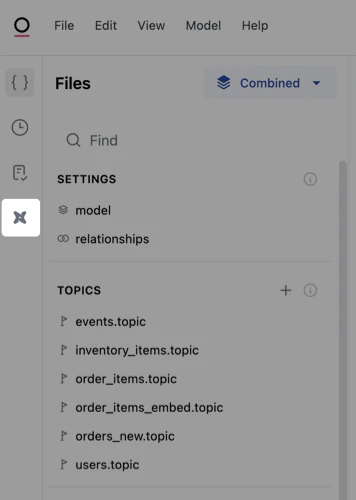
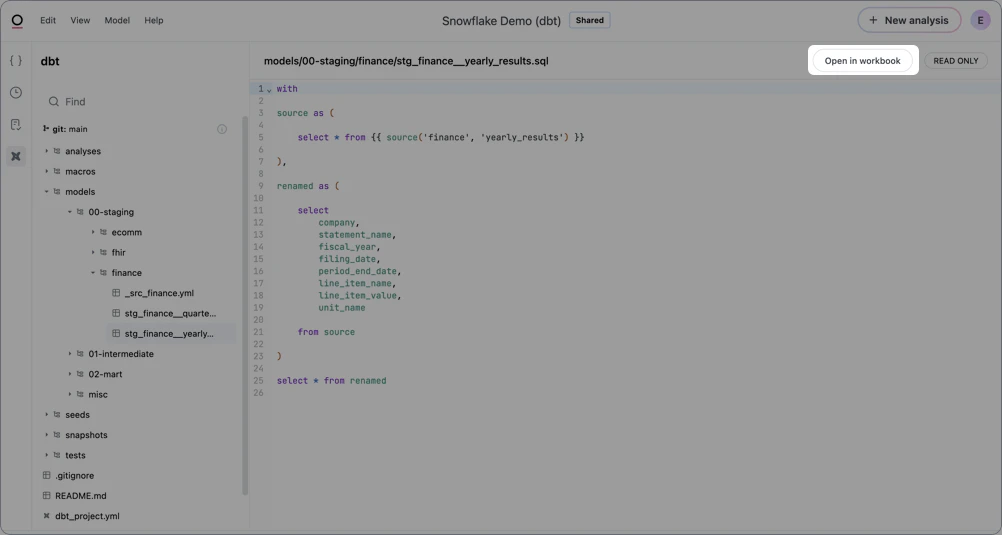
While the dbt IDE is read-only, you can edit existing dbt models in a workbook and push changes back to the dbt repository.Modeler permissions are required to edit dbt models.
After the model is rebuilt in your warehouse, bring in the updated version by triggering a schema refresh.
Preventing overwrites to existing models
When you convert a workbook query and push it to your dbt repository, Omni checks the Model name against your existing project. When pushing a model, Omni uses the Model name to determine whether to create a new file or update an existing one. If the name matches an existing dbt model, Omni treats the push as an update rather than a new addition. To create a brand-new.sql file instead of overwriting:
- Open the Push to dbt dialog.
- Edit the Model name field to a unique name.
- Confirm the push to generate the new file in your repository.
Next steps
- Trigger a schema refresh — Bring newly built or updated dbt models into Omni.